Import Google Drive documents for extraction with AI


- Drive import
- PDFs, images, Sheets, Docs, and more via Google Picker
- Drive export
- finished extractions as XLSX, CSV, or JSON files
IN + OUT: /api/drive/*
Content reviewed .
Google Drive document extraction should not begin with a download folder full of renamed copies. Connect the Google account once, choose the files in Google Picker and review the extracted rows beside each source. When the data is ready, write a new XLSX, CSV or JSON file back to Drive. The original stays where it was.
Open this integration in the app or read the public API and webhook guide.
Stop shuttling Drive files through your Downloads folder
- Manual Drive workflows create two extra transfers for every document: download before extraction and upload after export.
- Local copies lose the shared folder context, which makes the right source and the latest result harder to trace.
- A finished workbook belongs back in the team Drive, not in one person's Downloads folder or an email attachment.
- The connection should request a clear Google scope and remain easy to revoke.
How the Drive connection works
01. Connect Google once
One OAuth connection can grant the exact scope used by each feature: drive.file for Google Sheets push, Drive exports, and Drive imports via Google Picker. The connection is per account, encrypted, and revocable from the workspace.
02. Browse and import
The standard Google Picker lets you securely browse, search, and select one or multiple files directly from your Drive. Selected files stream to the client for the normal upload pipeline, so R2 persistence and browser-only storage work exactly as they do for a drag-and-drop.
03. Extract and review
The imported document uses the normal extraction pipeline with confidence-scored rows, saved correction patterns, hosted page caps, and the same file limits as other uploads.
04. Export back to Drive
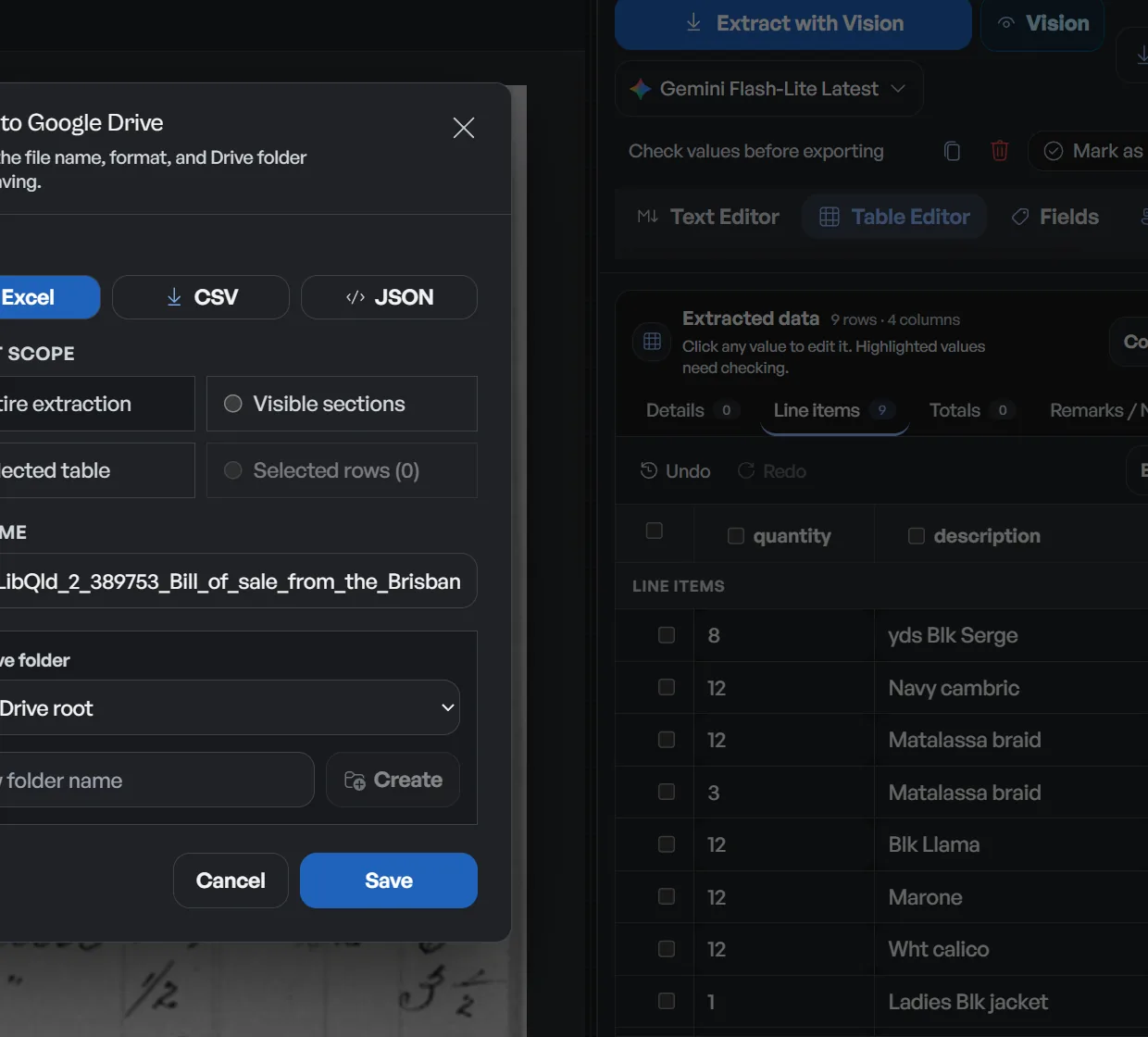
Push a finished extraction to your Drive as an XLSX workbook, CSV file, or JSON file. The endpoint uses the same format builders as direct downloads, then creates a new Drive file.
What the Drive connection moves
One shared OAuth connection powers both directions, with tokens encrypted using the same BYOK encryption that protects your API keys:
- Drive import: PDFs, images, Sheets, Docs, and more via Google Picker
- Drive export: finished extractions as XLSX, CSV, or JSON files
- Google Picker: secure multi-file selection with standard Drive UI
- Importable filter: non-importable MIME types hidden by default
- Shared OAuth connection: reuses the Sheets connection; revocable
- Token security: AES-GCM encrypted, never stored plaintext
A realistic example
A typical audit-adjacent loop with Drive:
| Step | Where it happens | Outcome |
|---|---|---|
| Client drops a trial balance PDF into a shared Drive folder | Google Drive | Document waits, no download needed |
| You import it from the Drive panel in Dynamite Docs | Dynamite Docs workspace | File streams into the normal pipeline, parsed as rows |
| Review low-confidence balances and export | Dynamite Docs Data Studio | Clean .xlsx written back to your Drive |
What the Drive connection does and does not
Does
- Opens Google Picker for user-controlled browsing and multi-file selection.
- Streams selected files to the client so the standard upload pipeline decides storage and extraction.
- Exports finished extractions back to your Drive as new XLSX, CSV, or JSON files.
Does not
- Does not scan or index your entire Drive. Only the files you select are fetched.
- Does not overwrite files in your Drive; exports are written as new workbooks.
- Does not keep your OAuth token unencrypted. Tokens are AES-GCM encrypted like every other secret.
Why Drive is more than a file picker
Import reuses the upload pipeline, so Drive-sourced files get identical storage, extraction, and review behavior, no second-class path to maintain.
Export closes the loop your team already has. The results go back to the Drive where the source documents and the shared spreadsheets already live.
One scoped, revocable OAuth connection with encrypted tokens keeps the integration useful without a broad, unexaminable scope grant.
Questions, answered
Do I need a separate connection for Drive and Sheets?
No. Both use the same encrypted Google connection. If your connection predates a scope needed by a visible feature, you will be prompted to reconnect for that missing scope.
What file types can I import?
The panel lists importable files by default, PDFs, images, Sheets, Docs, and other formats the extraction pipeline understands. Non-importable types are filtered out of the list.
Where do imported files get stored?
Exactly where an upload would: 500 MB of R2-backed storage on Starter, 2 GB on Pro, 10 GB on Scale, and browser-only storage on Free. The import feeds the existing pipeline.
How do I revoke access?
Disconnect from the workspace. One action revokes the shared connection for both Drive and Sheets.
Related integration articles
Open the integrations workspace, no payment details.
- 01Connect Google once
- 02Browse and import
- 03Extract and review
- 04Export back to Drive
- Drive import
- PDFs, images, Sheets, Docs, and more via Google Picker
- Drive export
- finished extractions as XLSX, CSV, or JSON files
- Google Picker
- secure multi-file selection with standard Drive UI