Push reviewed AI-extracted tables to Google Sheets


- Fresh tab per push
- your earlier tabs are never touched
- Document Fields tab
- document name, dates, extraction id, confidence
OUT: POST /api/sheets/export
Content reviewed .
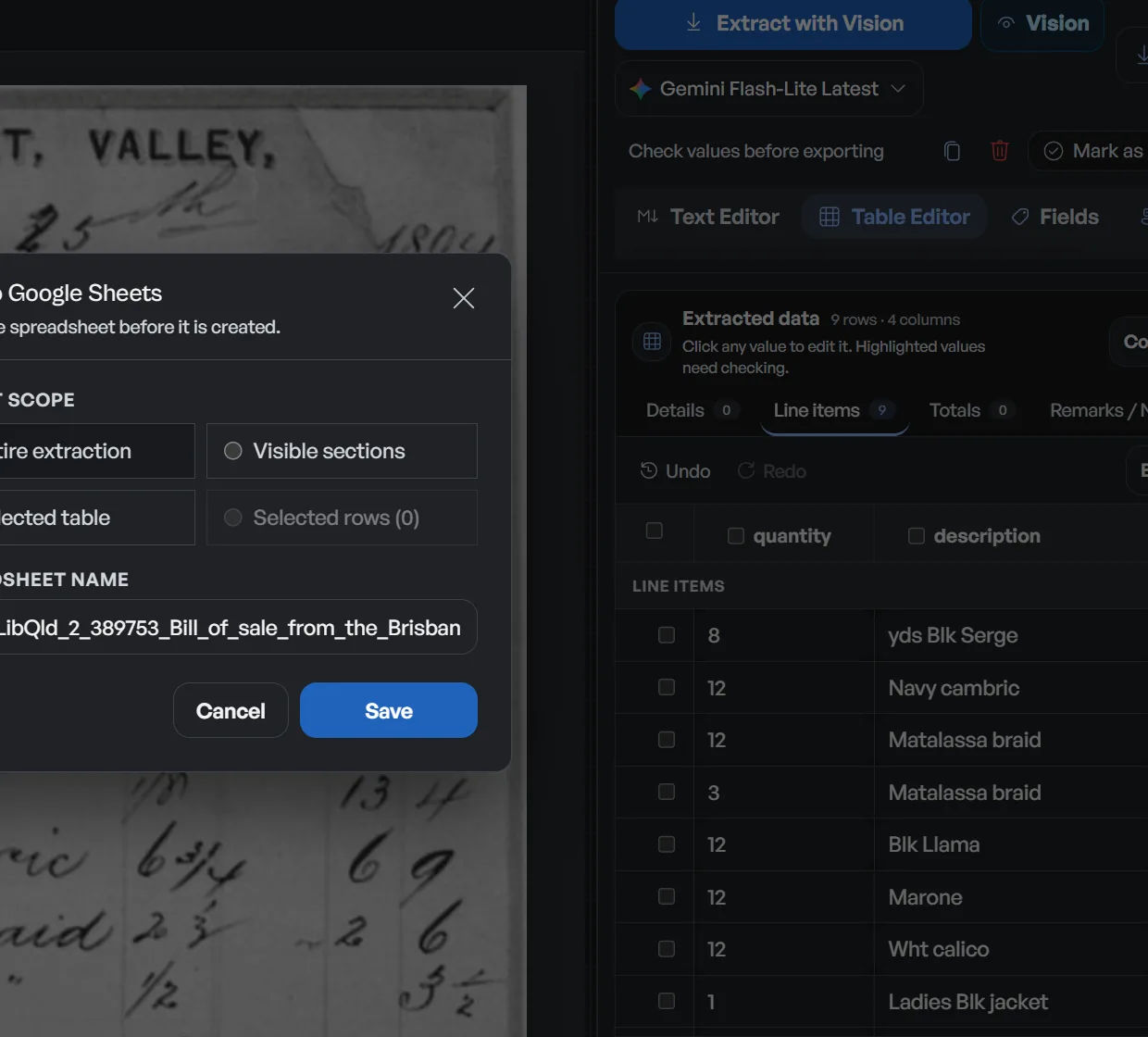
Export extracted data to Google Sheets without copying rows or rebuilding headers. Connect Google once, choose a reviewed extraction and push it to a fresh tab. Document metadata goes to a separate Document Fields tab, and an earlier push is never overwritten.
Open this integration in the app or read the public API and webhook guide.
Copy-paste is the expensive part of a Sheets handoff
- An extracted table is not in your spreadsheet until someone formats it and copies it over, manual work that quietly eats the value of the extraction.
- Re-pushing the same document (after a correction, say) usually means overwriting or duplicating rows by hand.
- The document name and extraction id get dropped in the copy, so the sheet cannot be traced back to its source.
- Every spreadsheet-bound team has its own favorite way to paste, and none of them survive contact with a formatted table.
How the Sheets push works
01. Connect Google Sheets once
The OAuth connection requests the drive.file scope for Sheets push. If you also use Drive import or Drive export, the same encrypted connection covers them without creating a separate account link.
02. Open the export menu
From any completed extraction, choose the Sheets push. Dynamite Docs reuses the last-used spreadsheet if you want, or picks a new one.
03. Get a fresh tab
The extraction is written to a new tab in the spreadsheet. A Document Fields tab carries the metadata (document name, dates, extraction id, confidence). Earlier pushes are never overwritten.
04. Keep working in Sheets
The tab is a normal sheet: filter, pivot, mail-merge, or feed it into the formulas you already run. The data stays linked to the source document in your workspace.
What the Sheets push writes
A push lands two things in your spreadsheet:
- Fresh tab per push: your earlier tabs are never touched
- Document Fields tab: document name, dates, extraction id, confidence
- Last-used spreadsheet: reused by default for continuity
- Offline OAuth consent: refresh tokens, encrypted at rest
- Exact scope tracking: spreadsheets for push; Drive scopes only for Drive
- Revocable: disconnect from the workspace anytime
A realistic example
A bookkeeper pushing a vendor invoice run to their working spreadsheet:
| Push | Tab created | Contents |
|---|---|---|
| Invoice batch 2026-08 | INV-2026-08 | Vendor, date, number, line items, tax, total |
| Bank statement Jul | BS-JUL | Date, description, debit/credit, amount, balance |
| Both pushes | Document Fields | Source document names + extraction ids + confidence |
What the Sheets push does and does not
Does
- Pushes a completed extraction to Google Sheets as a fresh tab, with a Document Fields tab for metadata.
- Reuses the last-used spreadsheet by default and never overwrites your earlier tabs.
- Encrypts the OAuth token and records the exact granted scopes for Sheets and Drive features.
Does not
- Does not modify or format cells in your other tabs. Each push is its own new tab.
- Does not write back cell edits you make in Sheets (no two-way sync).
- Does not store OAuth tokens in plaintext or push without your connection.
Why Sheets is the default destination
Most small finance teams already live in Sheets; a one-click push removes the copy-paste that separates an extraction from a working ledger.
Append-only tabs keep your spreadsheet history trustworthy. Re-pushes add, never destroy.
One encrypted, revocable OAuth connection covers Sheets and optional Drive features, so you can review and remove the Google connection in one place.
Questions, answered
Do I need a separate Google connection for Sheets?
No. Sheets push, Drive import, and Drive export share one encrypted Google connection. If yours predates a needed scope, a one-time reconnect enables the missing feature.
Will a push overwrite my existing data?
No. Each push creates a fresh tab. Your earlier tabs are left exactly as they are.
What is in the Document Fields tab?
Metadata about the push: the source document name, extraction id, dates, and confidence, so rows in the sheet can be traced back to their source.
How do I revoke access?
Disconnect from the workspace. One action revokes the shared connection for both Sheets and Drive.
Related integration articles
Open the integrations workspace, no payment details.
- 01Connect Google Sheets once
- 02Open the export menu
- 03Get a fresh tab
- 04Keep working in Sheets
- Fresh tab per push
- your earlier tabs are never touched
- Document Fields tab
- document name, dates, extraction id, confidence
- Last-used spreadsheet
- reused by default for continuity