PDF data extraction software
Extract PDF data with AI for accounting review


- Document metadata
- Report name, account reference, statement period, issue date
- Tabular line items
- Item code, description, quantity, unit price, total amount
Pull fields, tables and line items out of a PDF, check them against the page and download data that is ready for the next step.
Copy and paste works until a PDF contains wrapped rows, repeated headers or pages that are only images. AI PDF data extraction handles both kinds of file. It reads the embedded text in a digital PDF and uses visual recognition when a scanned page has no usable text layer.
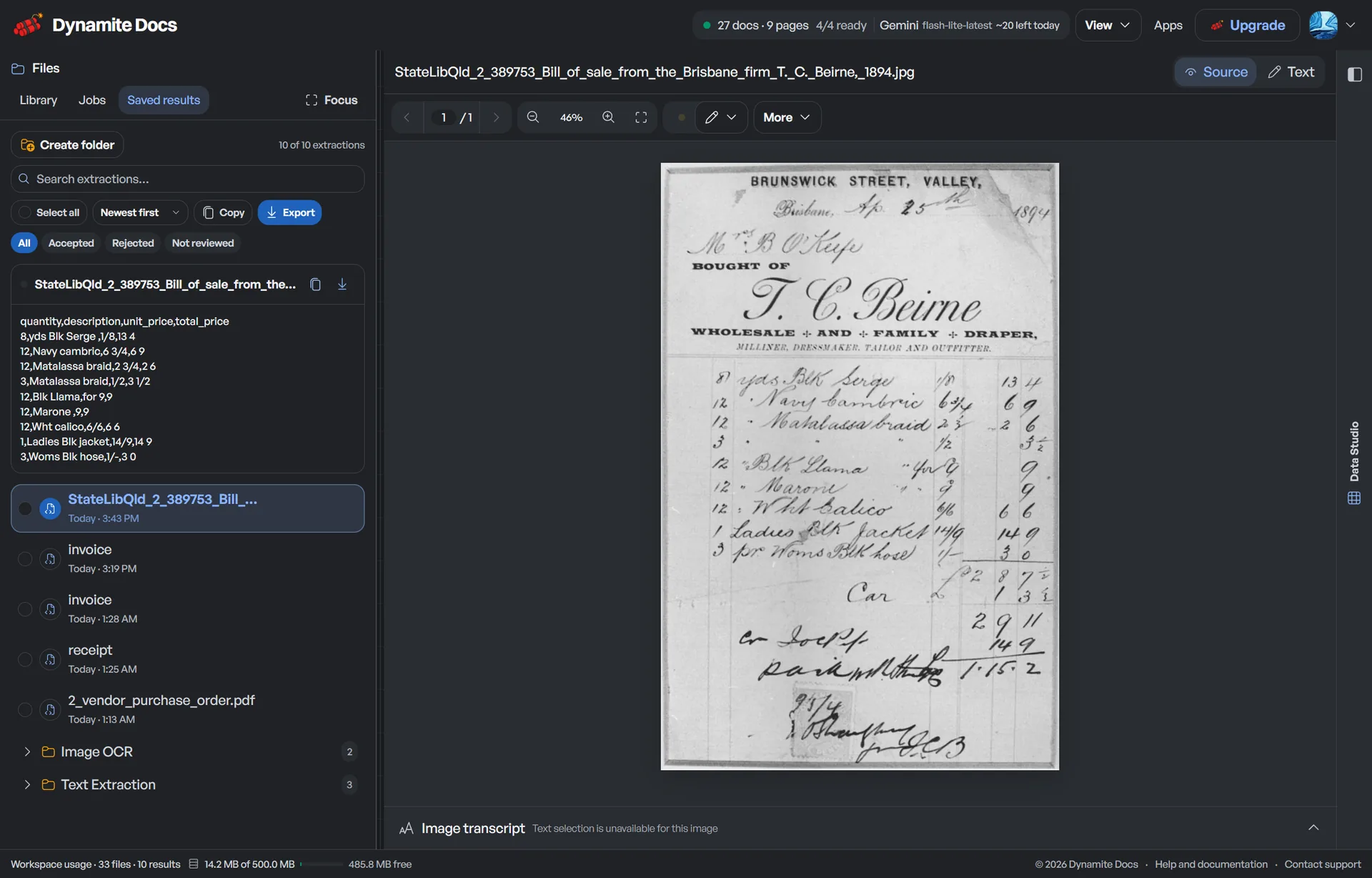
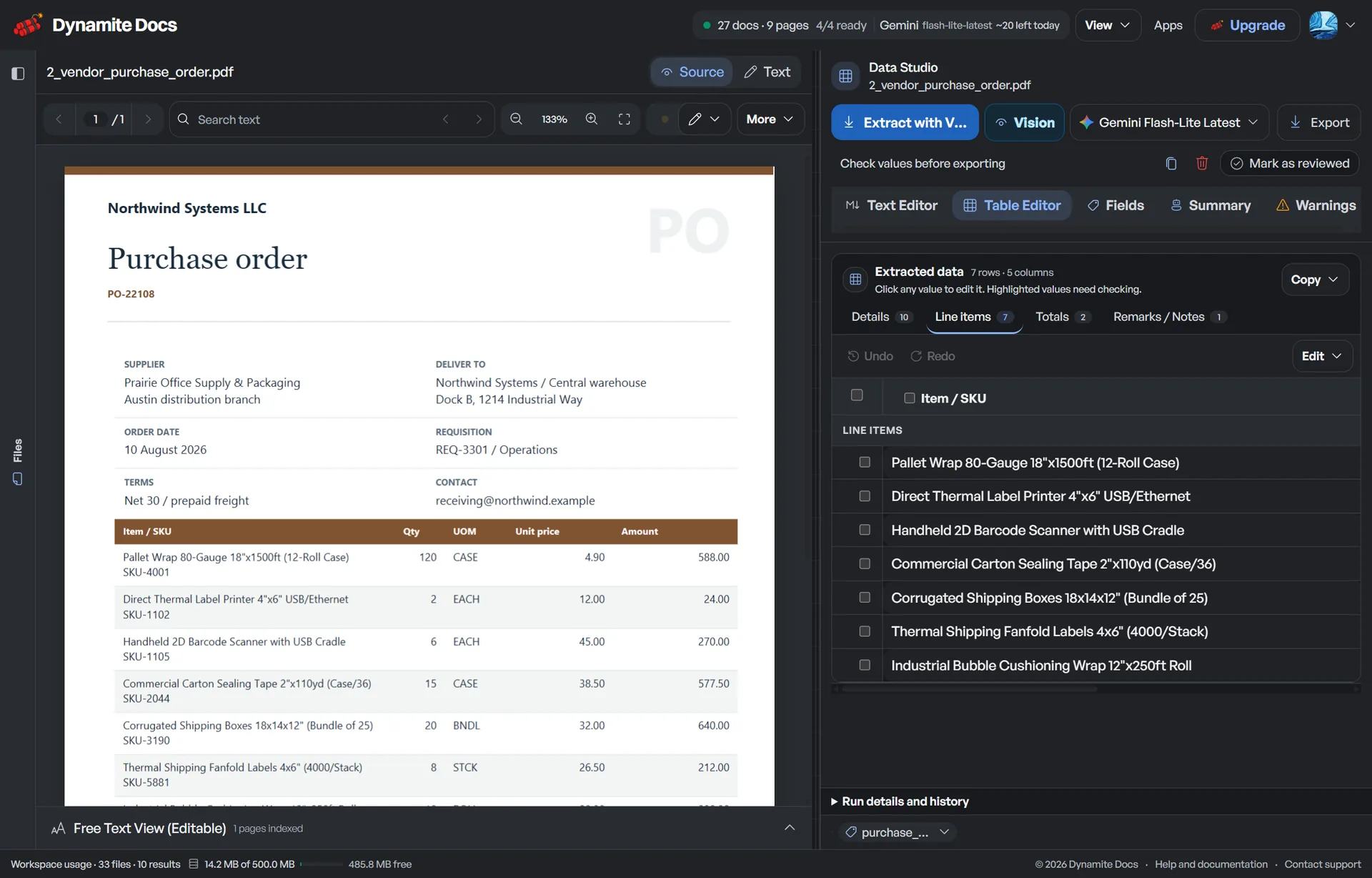
Dynamite Docs turns the result into named fields and rows instead of leaving you with a transcript. Open the original PDF beside the extracted table, correct doubtful cells and export the reviewed data to Excel, CSV, JSON or Google Sheets.
Extract data from a PDF. Try a PDF in your browser. Sign up only when you want to download or keep the result.
Start with a digital, scanned or mixed PDF
- Digital native PDFs: Read embedded text before using layout and model inference to organize fields and tables.
- Scanned PDF documents: Process image-based pages with visual AI OCR to recover text, numbers, and tabular boundaries.
- Multi-page tables: Join continuing rows across pages, then review repeated headers, wrapped records and subtotals.
- Complex column layouts: Distinguish multi-column text blocks from tables and flag column boundaries for review.
Preserve the structure that makes the PDF useful
Keep document details, repeating rows and source references separate so the output is easier to review and import.
- Document metadata: Report name, account reference, statement period, issue date
- Tabular line items: Item code, description, quantity, unit price, total amount
- Running balances: Opening balance, debits, credits, closing balance
- Tax and deductions: Taxable amounts, tax rates, withholding, gross totals
- Confidence metrics: Reliability scores calculated for every extracted table cell
- Source coordinates: Page and region references when the extraction backend returns coordinates
From file to reviewed result
- 1. Upload the original PDF. Choose a digital, scanned or mixed PDF in the browser. Stored files can also enter a batch through the REST API.
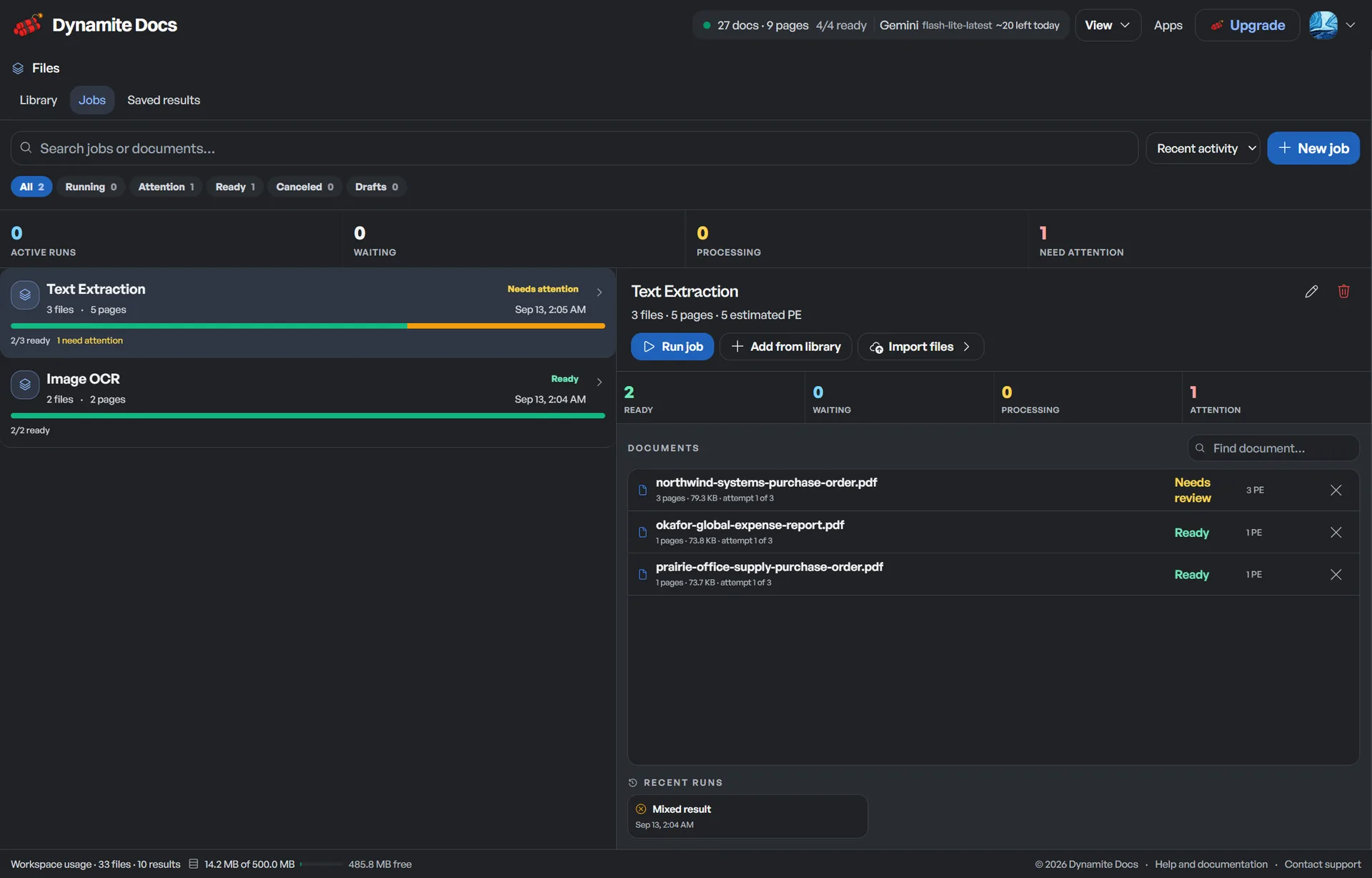
- 2. Read text and page layout. The extraction path uses available text and visual context to identify fields, headers, columns and repeating rows.
- 3. Review cells beside the page. Inspect flagged values, correct cells inline and fix column mappings before the data leaves the workspace.
- 4. Export the reviewed result. Download an Excel workbook, CSV or JSON file, or push the table into a new Google Sheets tab.
Compare the extracted table with the PDF
The PDF stays open next to the data grid. Confidence indicators point to cells worth checking, and you can correct a value in place before export.





Pick the format that fits the handoff
Use a workbook for review, CSV for a flat import, JSON for software or Google Sheets for a shared working table.
| Output format | Structure | Useful when |
|---|---|---|
| Excel (.xlsx) | Structured worksheets with preserved data types and headers | Financial modeling, reconciliation, and audit review |
| CSV | Plain comma-delimited rows with UTF-8 encoding | Direct database import, business intelligence, and data analysis |
| JSON | Column definitions, row arrays, metadata and document type | Web application backends, cloud functions, and ETL pipelines |
| Google Sheets | Reviewed data pushed into dedicated worksheet tabs | Team collaboration, client reporting, and shared dashboards |
Check the errors a tidy export can hide
Confidence
Confidence indicators call attention to ambiguous characters such as 0 and O or 1 and l. They prioritize review but do not prove a value is correct.
Accuracy
Native digital text avoids OCR noise, but wrapped text cells and multi-line item descriptions require layout-aware parsing.
Failure state
Password protection, damaged files, heavy skew and low resolution can block or weaken extraction. Fix the source before a large batch.
Product boundary
PDF data extraction produces clean structured tables and key-value fields. It does not reproduce graphic design elements or decorative fonts.
Split automation from final approval
The software prepares and structures PDF data. The operator confirms the schema, locale and business-critical values.
| Component | Platform role | Operator role |
|---|---|---|
| Document ingestion | Automated PDF parsing and text-layer discovery | Upload original high-fidelity PDF files |
| Table detection | AI identification of columns, rows, and headers | Confirm column header names and alignments |
| Data normalization | Date standardizing and decimal number formatting | Verify currency codes and locale conventions |
| Export & delivery | Excel, CSV, JSON and Sheets generation | Approve final dataset before downstream entry |
Confidentiality and data protection standards
Free and anonymous files stay in browser storage, but hosted inference still sends prepared document content to an eligible AI provider.
Pro and Ultra add provider-routing policies for no-training and data-residency requirements. Hobby, Pro, and Ultra can run model inference through the local Ollama companion.
Questions about pdf data extraction software
How do I extract data from a PDF into Excel?
Upload the PDF, review the detected fields and table columns beside the source, correct any doubtful values, then choose Excel to download an .xlsx workbook.
Can AI PDF data extraction handle scanned documents?
Yes. Scanned pages are rendered as images for a vision-capable model. Image quality, rotation, small type and complex table boundaries still affect the result.
How does the software handle multi-page tables in PDFs?
The extractor can link continuing rows and remove repeated headers for multi-page tables in PDFs. Review page boundaries, wrapped descriptions and subtotals before accepting the combined table.
Is my PDF data secure and private during extraction?
Files are encrypted in transit and stored files are encrypted at rest. Dynamite Docs does not use customer documents to train foundation models. Hosted and own-key requests are subject to the selected provider's handling terms. Review storage, provider, policy, and local-inference choices before processing sensitive files.
Choose the next document task
- AI document extraction software: Extract named fields and table rows from supported business files.
- AI PDF extraction for structured data: Read digital or scanned PDFs and review fields and tables beside the source.
- PDF to Excel converter: Convert PDF tables into structured spreadsheets without retyping.
- PDF table extractor: Specialized tool for extracting tabular data from PDF files.
- PDF OCR for scanned documents: Detailed guide to optical character recognition for PDF files.
- Document extraction plans and pricing: Compare Free, Hobby, Pro, and Ultra tiers with hosted and BYOK processing.
Related Workflows
Extract data from a PDF or compare processing, storage and integration limits.
- 01Upload the original PDF
- 02Read text and page layout
- 03Review cells beside the page
- 04Export the reviewed result
- Document metadata
- Report name, account reference, statement period, issue date
- Tabular line items
- Item code, description, quantity, unit price, total amount
- Running balances
- Opening balance, debits, credits, closing balance